PlaylistTime / Guides / Stay focused on YouTube
How to Stay Focused on YouTube: Stop Getting Distracted While Studying or Working
To stay focused on YouTube, decide what you will watch before you open it, know how long it takes, and switch off the features that pull you elsewhere: autoplay, homepage recommendations and Shorts. YouTube has settings for most of this, and a plan with a number on it does the rest.
This guide covers both. First the plan: how long your playlist really is and how many minutes a day finish it, which you can work out if you use our playlist length calculator. Then every YouTube setting that helps, with the exact steps from YouTube's own help pages, checked on October 26, 2026.
Why we wrote this guide
“I was getting distracted on YouTube. This calculator helped me concentrate on my playlist, and it also helped me complete things on time.”
Nitin Raja, who builds PlaylistTime
Nitin Raja builds PlaylistTime, and that sentence is the reason this guide exists. The calculator does not block anything. What it does is put a size and a date on a playlist, so a study session has an end and the next video in the sidebar is not the obvious thing to do.
What we do differently: we give you the real length of your playlist from YouTube's official data, every speed at once, the minutes a day you need and a finish date, with no account. The settings below are YouTube's own, linked to its help pages.
How to not get distracted on YouTube
Seven things work best together:
- Open a playlist, not the home page. Bookmark the playlist you are working through and go straight to it.
- Know the total and your daily amount. "45 minutes of this playlist today" is a task you can finish; "some YouTube" is not.
- Turn off autoplay so a video ends instead of rolling into the next recommendation.
- Turn off watch history if you want YouTube to stop filling the home page with recommendations.
- Show fewer Shorts in the app, and mark what you do not want as "Not interested".
- Set a break or bedtime reminder in the mobile app.
- Check your Time watched once a week to see if the plan is working.
How to stop getting distracted by YouTube while studying
Give every session a fixed amount of video and a finish date for the whole playlist. Here is the method we use, with a real course.
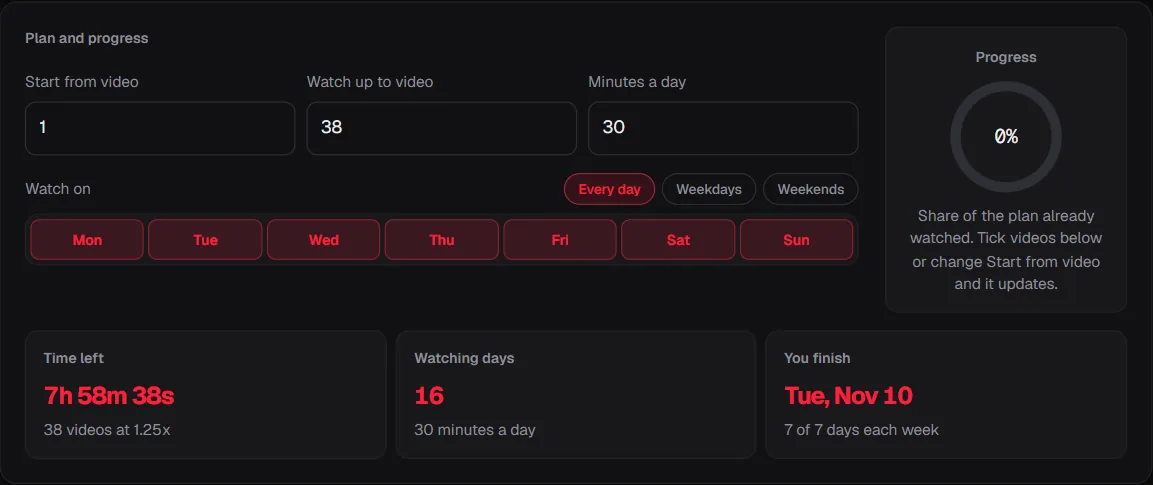
Worked example: MIT's 6.0001 Introduction to Computer Science and Programming in Python. Fall 2016 playlist had 38 videos and 9h 58m when we measured it on October 26, 2026. At 1.25x it is 7h 59m. At 30 minutes a day that is 16 days; starting on October 26, 2026, you finish on Nov 10, 2026. Each day's task is now "30 minutes of the next videos", which is small enough to start and has a clear end.
Total length of 6.0001 Introduction to Computer Science and Programming in Python. Fall 2016 (38 videos), measured through the PlaylistTime API on October 26, 2026, divided by each speed. Your plan: 1.25x.
Show these numbers as a table
| Speed | Watch time | Time saved |
|---|---|---|
| 1x | 9h 58m | - |
| 1.25x | 7h 59m | 2h 00m (20%) |
| 1.5x | 6h 39m | 3h 19m (33%) |
| 1.75x | 5h 42m | 4h 16m (43%) |
| 2x | 4h 59m | 4h 59m (50%) |
Days and finish date at 30 and 60 minutes a day, every day, starting on October 26, 2026.
Show these numbers as a table
| Speed | 30 min a day | 60 min a day |
|---|---|---|
| 1x | 20 days · Nov 14 | 10 days · Nov 4 |
| 1.25x | 16 days · Nov 10 | 8 days · Nov 2 |
| 1.5x | 14 days · Nov 8 | 7 days · Nov 1 |
| 1.75x | 12 days · Nov 6 | 6 days · Oct 31 |
| 2x | 10 days · Nov 4 | 5 days · Oct 30 |
More minutes a day shorten the plan quickly at first, then by less each step. At 1.25x, 30 minutes a day takes 16 days, 60 minutes takes 8 and 120 minutes takes 4:
Watching days for 9h 58m of video at 1x, 1.25x and 2x. The dot is 30 minutes a day at 1.25x, starting October 26, 2026.
Show these numbers as a table
| Minutes a day | 1x | 1.25x | 2x |
|---|---|---|---|
| 15 | 40 days | 32 days | 20 days |
| 20 | 30 days | 24 days | 15 days |
| 30 | 20 days | 16 days | 10 days |
| 45 | 14 days | 11 days | 7 days |
| 60 | 10 days | 8 days | 5 days |
| 75 | 8 days | 7 days | 4 days |
| 90 | 7 days | 6 days | 4 days |
| 105 | 6 days | 5 days | 3 days |
| 120 | 5 days | 4 days | 3 days |
Shorter playlists make good first plans. 3Blue1Brown's Essence of linear algebra is 3h 01m: 7 days at 30 minutes a day, or 5 days at 1.5x.
To make the plan, paste the link into the playlist length calculator, set your speed and minutes a day, and bookmark the result. The bookmark reopens the same plan, and ticking videos as you go shows what is left.
How to turn off autoplay on YouTube
On a computer, click the Autoplay switch at the bottom of the player. In the Android or iPhone app, tap the switch at the top of the player, or go to your profile picture, Settings, then Autoplay. With autoplay off, a video stops when it ends instead of starting a suggested one.
- The setting can differ per device, so switch it off on each one you use.
- For users aged 13 to 17, autoplay is off by default.
- Even with autoplay on, YouTube says it stops after 30 minutes of no activity on mobile data, or after 4 hours on Wi-Fi.
How to turn off YouTube recommendations on the homepage
Turn off (and optionally delete) your watch history. YouTube's help page says that if you have no relevant recent watch history and have chosen not to get recommendations based on it, features such as recommendations on the YouTube homepage are removed. Another help page says the same plainly: to stop video recommendations on Home, you can delete and turn off your watch history.
The trade-off: YouTube also uses watch history for "resume where you left off" progress, and clearing history clears those progress bars. The calculator's video number and ticks are a way to keep your place without it.
How to pause YouTube watch history
On a computer, open My Activity, then Controls, and turn YouTube History off. On Android, go to Settings, Manage all history, Controls, and untick "Include the YouTube videos you watch". When signed out, open History and choose Pause watch history.
While history is paused, YouTube's Time watched statistics are not available, so decide which matters more to you: a quiet home page or the weekly numbers.
How to stop getting distracted by YouTube Shorts
In the app, scroll to a Shorts row on Home, tap More and choose "Show fewer Shorts". You can also mark a video "Not interested", or choose "Don't recommend channel", which covers that channel's Shorts too. YouTube's help page explains how to undo these in My Activity.
YouTube does not document a setting that removes the Shorts shelf completely; "Show fewer Shorts" is the official option. Our guide on how to block YouTube Shorts covers what else you can do on a computer and a phone.
YouTube take a break reminder
In the YouTube mobile app, go to your profile picture, Settings, General, and turn on "Remind me to take a break", then pick how often. When the time is up, the reminder pauses your video until you dismiss it.
- It is a mobile app feature; on iOS it works on iPhone, not iPad.
- It is on by default for users aged 13 to 17 and off for adults.
- The timer resets if you close the app, switch devices or pause for 30 minutes or more.
Set the reminder to your daily amount from the plan. If your plan is 30 minutes a day, a 30-minute reminder tells you when today's part is done.
YouTube bedtime reminder
In the mobile app, go to Settings, General, turn on "Remind me when it's bedtime" and set a start and end time. You can have it interrupt the video or wait until the video ends. It has the same defaults as the break reminder and also works on iPhone but not iPad. YouTube also has a Sleep timer that pauses the video after a set time.
How to see how much time you spend on YouTube
In the mobile app, tap your profile picture, then Time management, then Time watched. It shows your daily average and the totals for today, yesterday and the past seven days. YouTube notes a known issue: time watched on computers is reported incorrectly, and the numbers are not available while watch history is paused.
Compare the week's total with your plan. If the plan says 3.5 hours (30 minutes a day) and Time watched says 12, the extra hours went somewhere other than the playlist.
How to use YouTube for studying
Treat a playlist like a course: one list, a daily amount, notes and a finish date.
- One playlist at a time. Save extra videos to a separate playlist or to Watch later for after the session.
- Use chapters on long lectures to jump to the part you need and to stop at a natural break.
- Pick a speed you can follow. 1.25x or 1.5x is a common start; research on lecture videos found larger costs above 2x (see our 2x speed guide).
- Write a line of notes per video. It turns watching into studying and shows you where you are.
- Plan by time, not by videos. A playlist of many short videos and one of a few long lectures can take the same time.
Is there a distraction-free way to use YouTube in a browser?
The settings above are the official way. Browser extensions can hide more, but check what each one can read before installing it. Our playlist length button shows the length of the playlist you are on in one click, so you can go straight from the playlist to your plan. For hiding Shorts, see how to block YouTube Shorts.
PlaylistTime vs adding up times by hand vs YouTube
Knowing the size of the playlist is the first step of the plan. These are the ways to get it.
| PlaylistTime | Adding up times by hand | YouTube's playlist page | |
|---|---|---|---|
| Total length of the playlist | Yes, to the second | Yes, if you add every video without a slip | No, it shows the number of videos |
| Time at 1.25x, 1.5x, 1.75x and 2x | All at once | One division per speed | No |
| Finish date for your minutes a day | Yes, counting only the days you watch | By hand, with a calendar | No |
| Time left from the video you are on | Yes | Add up the rest again | No total, only a red bar on each watched video |
| Private and deleted videos | Listed and left out of the total | Easy to miss | Hidden from the list, often with a note |
| Account needed | No | No | Sign-in for history and resume |
How accurate is a playlist length calculator?
Exact to the second for every playable video. Private, deleted and blocked videos have no length and are left out (and listed); live streams are counted only after they end; ads and pauses are extra. Playlists change, so measure again if you come back after a few weeks.
Sources
- YouTube Help: Autoplay videos. Switch locations, defaults, 30 minute and 4 hour limits
- YouTube Help: Take a break reminder. Mobile app only, pauses the video
- YouTube Help: Set a bedtime reminder. Start and end time, iPhone not iPad
- YouTube Help: View, delete or turn on or off watch history. Homepage recommendations removed without history
- YouTube Help: Manage your recommendations and search results. "Show fewer Shorts", "Not interested", "Don't recommend channel"
- YouTube Help: Time watched profile. Daily average and weekly totals
- YouTube Help: Video progress bar. Resume needs sign-in and history
- YouTube Help: Set a sleep timer. Pause after a set time
Questions
How do I stop getting distracted on YouTube?
Go straight to a playlist instead of the home page, set a daily amount of video with a finish date, and turn off autoplay. Turning off watch history removes homepage recommendations, and "Show fewer Shorts" reduces Shorts in the app.
How do I turn off autoplay on YouTube?
On a computer, click the Autoplay switch at the bottom of the player. In the mobile app, tap the switch at the top of the player, or open your profile picture, Settings, Autoplay.
How do I turn off recommendations on the YouTube homepage?
Turn off and delete your watch history. YouTube says that with no relevant recent history and history turned off, recommendations on the homepage are removed.
Can I hide YouTube Shorts completely?
YouTube does not document a setting that removes Shorts completely. The official option is "Show fewer Shorts" on a Shorts row in the app, plus "Not interested" on single videos.
Where is the YouTube take a break reminder?
In the mobile app: profile picture, Settings, General, "Remind me to take a break". It pauses your video when the time is up. On iOS it works on iPhone, not iPad.
How many minutes a day should I study from YouTube?
A number you can keep every day. Divide the playlist length by the days you have to find the minimum; 30 minutes a day finishes a 10-hour playlist in 20 days at normal speed.
Related tools
YouTube playlist length calculator
The total length of any playlist at every speed, time left from any video and a finish date.
Study planner
Pick a deadline and study days, get the minutes a day and a day-by-day video schedule.
Watch time calculator
How long one video or any length takes at 1.25x, 1.5x, 2x or a speed you type.
Channel length calculator
How long it would take to watch every upload on a channel.
Multiple playlist calculator
Up to 10 playlists combined into one total, with a subtotal for each.
Sort a playlist by length
Every video from longest to shortest, or shortest first.
Playlist length button
Open any playlist on YouTube and see its length in one click.